Using CodeRunner
Get started
- Sign in, or if your team is using Classroom mode, ask your mentor for a code.
- Click Switch project, then load a lesson or import a public GitHub project.
- For a lesson, select Preview to read its README and follow the instructions. For an imported project, open the files you want to work on.
Switching or resetting replaces your current files. For an imported project, commit and push any work you want to keep.
Robot lessons and imported projects
Click Start in the Driver Station at the bottom of the page for normal robot simulation. The ▾ beside it also offers Debug and Build when you need them. These controls are designed to work with CodeRunner and let you control your code from the browser. Do not use WPILib's Simulate Robot Code, Debug Robot Code, or Build Robot Code commands in CodeRunner.
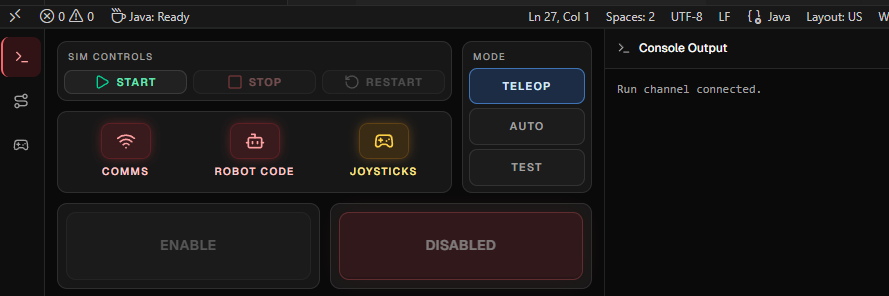
- Click Start in the Driver Station.
- Wait for Comms and Robot Code to turn green.
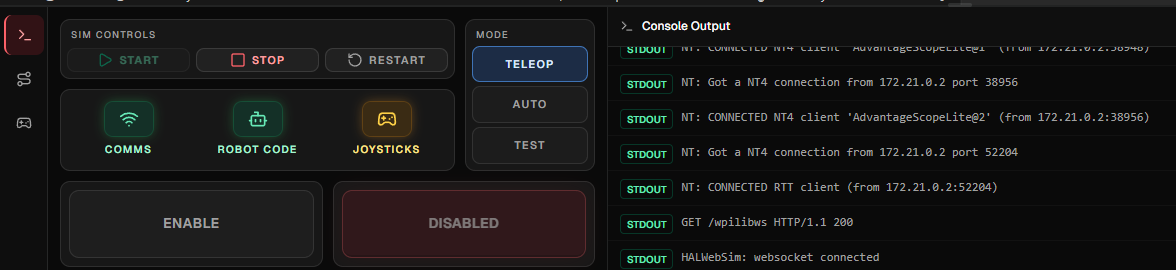
- Select Teleop, Auto, or Test, then click Enable.
- Click Stop when you are finished, or Restart to stop the code and re-run with any changes you've made.
Build output and robot output appear in the Console tab. Use the top-bar AdvantageScope, PathPlanner and Preview tabs to switch the tool beside the editor. AdvantageScope opens by default, and switching tabs does not reload any of them.
Drag the dividers to resize panes. Use the caret buttons or User menu → Layout to change the layout.
PathPlanner
For robot lessons and imported projects, the PathPlanner tab opens the path editor. For path and auto editing basics, see the official PathPlanner guide.
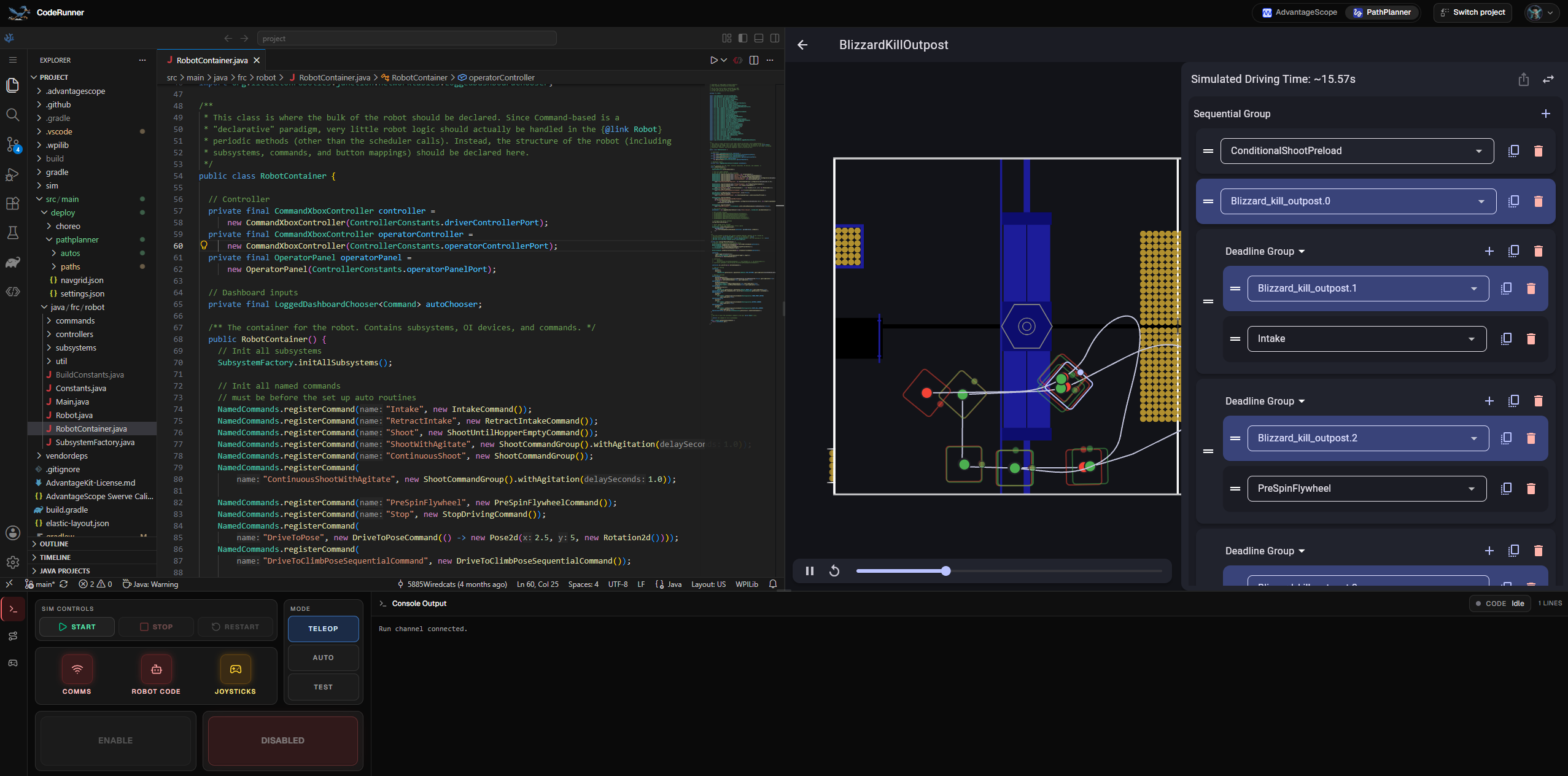
PathPlanner writes to src/main/deploy/pathplanner/** in the current project.
Files under src/main/deploy/choreo/** are visible but read-only.
If you edit a PathPlanner file directly in VSCodium, refresh the CodeRunner page
before looking for that change in PathPlanner. Switching or resetting the
project reloads PathPlanner with the new project's files.
PathPlanner robot telemetry and hot reload are not connected. Use AdvantageScope for simulated robot telemetry.
Preview
Use Preview to read project Markdown and HTML reports beside the editor. A
root README.md opens automatically; use the searchable picker to find other
documents by name or path, including generated files under build/reports/**.
Click Refresh after a build or edit to see updated changes.
Console lessons
Console type lessons are pure Java exercises, not robot projects. Because they
do not run a robot simulation, the simulation tools and Driver Station are
hidden and the VS Code editor expands to fill the screen. Use the editor's
Run button to run them.
The top bar still offers a Preview button for instructions and reports.
Explore more
While a robot simulation is running, explore the Driver Station's Auto and Controls tabs. Auto appears when the robot code publishes an autonomous chooser; Controls lets you select a gamepad or keyboard input to control the simulation.