Quick Start (Installation)
Run CodeRunner locally in demo mode to try the editor, Advantagescope telemetry, and PathPlanner without setting up OAuth.
Demo mode bypasses authentication. Every visitor shares the same admin account, workspace, and files. Use it only on your computer or a trusted local network.
Prerequisites
Start CodeRunner
Clone the repository:
git clone https://github.com/mathewdunne/CodeRunner coderunner
cd coderunner
Then start the demo for your platform:
- Linux / WSL2
- macOS
- Windows (PowerShell)
- Windows (cmd)
CODERUNNER_DOCKER_GID=$(stat -c '%g' /var/run/docker.sock) CODERUNNER_DEMO_MODE=1 docker compose up
CODERUNNER_DOCKER_GID is required on Linux and WSL2 so the control plane can access the Docker socket.
CODERUNNER_DEMO_MODE=1 docker compose up
$env:CODERUNNER_DEMO_MODE = "1"; docker compose up
set "CODERUNNER_DEMO_MODE=1" && docker compose up
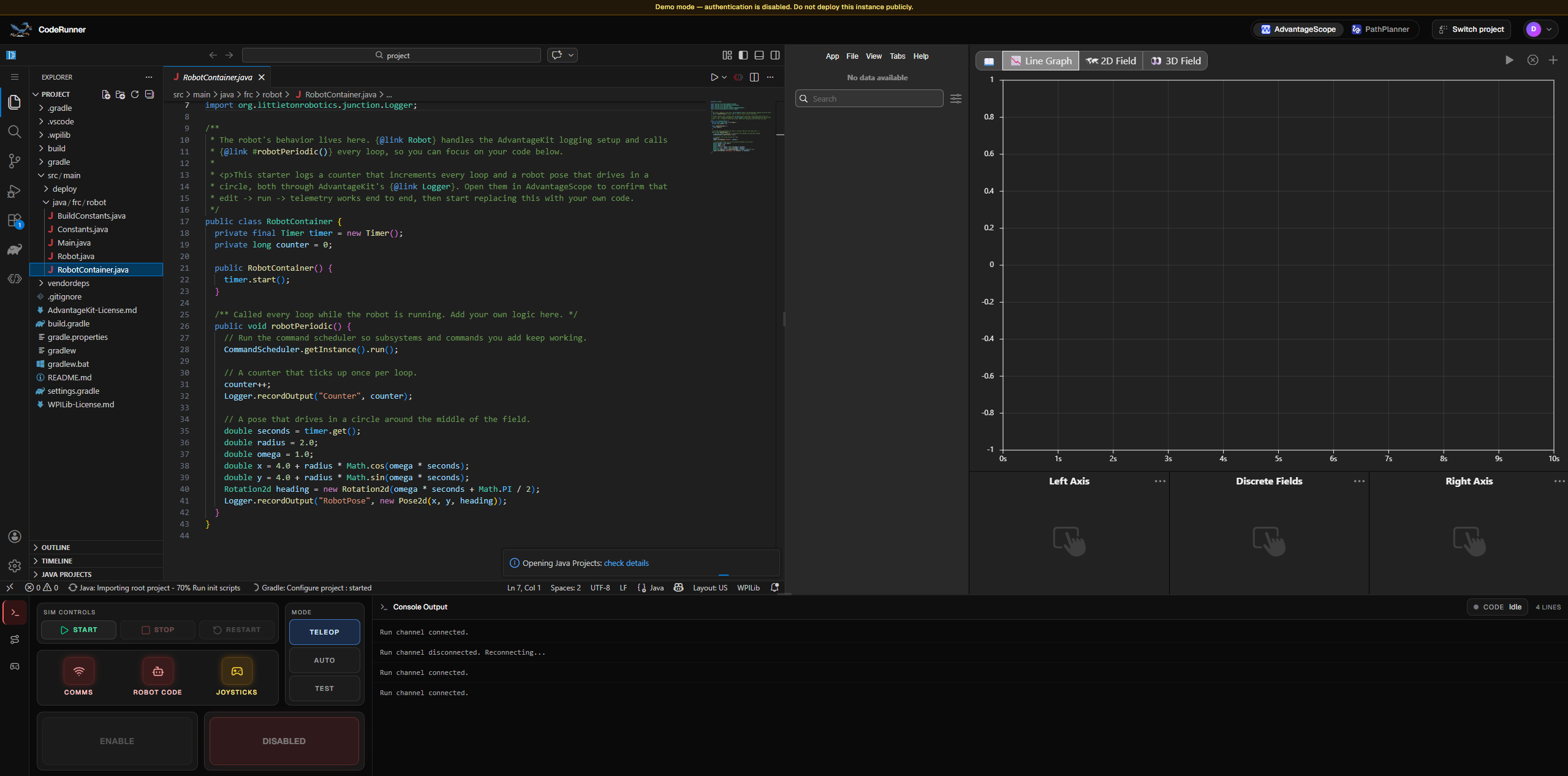
The first start may take a while while Docker downloads the workspace image. When the services are ready, open http://localhost:4000, then follow Using CodeRunner: load a project, edit the code, click Start in the Driver Station, and click Enable when the robot is ready.
workspace-template exitsDocker Compose may report that workspace-template exited with code 0. This is
expected: it is a short-lived helper that pulls the multi-gigabyte
workspace image during startup, so the first student does not have to wait for
it to download when they log in. The control plane starts a separate workspace
container from that image when needed.
To stop CodeRunner, press Ctrl-C, then run:
docker compose down --remove-orphans
Deploy for a team
Demo mode is only for evaluation. For individual logins and isolated student workspaces, continue to Local Deployment.