Importing a Team Project
The Switch Project menu in the editor topbar has two sections: a lesson catalog for structured exercises, and a Team Import field for loading a real team project from GitHub. This page covers the team import flow.
If you are looking for how lessons work, see How Lessons Work.
What a team import is for
Lessons are scratch work: they are gitless, disposable, and intended for
free experimentation. Team import is different: it clones a real public GitHub
repository into the student's workspace and keeps the .git directory and
the HTTPS origin. The student can commit and push from the VS Code terminal
exactly as they would on their own machine.
Use team import when students are working on actual robot code that needs to be committed: build season projects, competition code reviews, or any time the work needs to be saved in version control.
How to do an import
- Open the Switch Project menu from the editor topbar.
- In the Team Import field, paste the public GitHub URL of the repository
root, for example
https://github.com/frc1234/robot-2026. - Confirm the discard prompt. The current workspace contents are deleted before the import begins. Students should push any work they want to keep before switching.
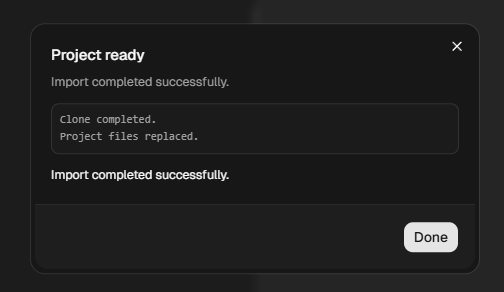
- A progress panel streams the clone and validation steps. When it finishes, the editor reopens on the imported project.
What URL formats are accepted
Only public GitHub repository root URLs in HTTPS format are accepted:
https://github.com/<owner>/<repo>
https://github.com/<owner>/<repo>.git
The following are rejected with an error message:
- SSH URLs (starting with
git@) - URLs pointing to a branch, tag, subdirectory, or file within a repo
(for example
.../tree/main/src) - URLs for hosts other than
github.com - Private repositories (the clone runs without credentials)
What the import does
When a valid URL is submitted, the control plane:
- Clones the repository inside the student's container using
git clone --no-single-branch --depth 1. This gives the student a shallow copy with all remote branches available asorigin/*, but no full commit history. - Verifies that
build.gradleexists at the project root. Repositories without abuild.gradleare rejected; team import is intended for Gradle/WPILib robot projects. - Checks that the cloned project is within the 200 MB size limit.
- Replaces
/workspace/projectwith the cloned project, keeping.gitand theoriginremote intact. - Clears the editor's workspace cache so VS Code re-opens the new folder cleanly.
The workspace is then treated as a robot project. The Driver Station and the
AdvantageScope/PathPlanner tabs are available, matching a robot lesson.
Pushing and pulling after import
Because .git and the origin remote are kept, students can use Git
normally from the VS Code integrated terminal. The container has no stored
credentials, so students need to authenticate themselves before pushing. Two
common approaches:
- Personal access token: configure Git's credential helper to store a token, then push as normal. GitHub's documentation covers how to create a fine-grained token with repository write access.
- Switch the remote to SSH: replace the HTTPS origin with an SSH URL
(
git remote set-url origin git@github.com:<owner>/<repo>.git) and add an SSH key. The container hasssh-keygenavailable.
The server does not store, inject, or manage any Git credentials.
Running an imported project
Imported projects run through the same Driver Station flow as robot lessons:
click Start to build and start the simulation. When robot code and
communications are ready, choose a mode and click Enable. Use AdvantageScope
for telemetry or PathPlanner for the project's paths and autos.
No changes to build.gradle are required, even if the project calls
wpi.sim.addGui() or wpi.sim.addDriverstation(). At run time, a Gradle
init script is applied non-destructively that:
- Removes the simulation GUI and Driver Station socket HAL extensions (unavailable in a headless container).
- Enables the HALSim WebSocket server the web Driver Station needs, if it is not already present.
The student's build.gradle is untouched; the init script operates at the
Gradle API level and is invisible in the editor.
Constraints and limits
| Constraint | Value |
|---|---|
| Allowed hosts | github.com only |
| Repository visibility | Public only |
| URL shape | Repository root; no branch or path controls |
| Must contain | build.gradle at the root |
| Size limit | 200 MB (checked after clone) |
| Rate limit | 6 imports per user per hour |
| Clone timeout | 60 seconds |
Switching away discards the workspace
Switching to a lesson, switching to a different import, or re-importing replaces everything in the workspace. There are no server-side backups of imported project work. Students should push their commits to GitHub before switching; that is the intended safety net. The discard confirmation prompt is there as a reminder.
If a student accidentally switches away without pushing, the work is gone from the server. Recovery depends entirely on whether they had committed and pushed to the remote.
See How Lessons Work for the same caveat from the lesson side.