How Lessons Work
CodeRunner gives every student an empty workspace. They fill it from the Switch Project menu in the editor topbar, which offers two ways to get starting code:
- Lessons: load a ready-made module from a lesson catalog.
- Team import: clone a real team project from a public GitHub repository (see Importing a Team Project).
This page explains how the lesson catalog works for you as the operator. If you want to write your own lessons, see Authoring Lesson Modules.
Two catalog sources, one menu
A "lesson catalog" is a list of modules. Each module is a complete starting project (source files, a project README, and editor configuration) that a student loads into their workspace with one click.
CodeRunner can serve that catalog from one of two sources, and students see the same Switch Project menu either way:
Bundled catalog (default, zero-config)
A small demo catalog is baked into the application image. It works out of the box with no configuration and no network access, which makes it useful for a first run, an offline classroom, or a demo. This is the default when you have not configured a remote catalog.
Remote catalog (your own lessons repo)
Point CodeRunner at a public GitHub repository and it serves that repository's modules instead. This lets you write and update lessons for your team without rebuilding or redeploying the app: push to the repo and the new lessons appear.
Enable it by setting environment variables on the control plane:
| Variable | Purpose | Default |
|---|---|---|
LESSONS_CATALOG_REPO | The public GitHub lessons repo. Accepts either owner/repo shorthand (for example mathewdunne/coderunner-lessons) or a full https://github.com/owner/repo URL. Leave unset to use the bundled catalog. | unset |
LESSONS_CATALOG_BRANCH | Branch to read the catalog from. | main |
LESSONS_CATALOG_DIR | Path to the bundled catalog inside the image. You rarely need to change this. | catalog |
See Configuration for the full environment variable reference.
When a remote catalog is active, CodeRunner reads the module list from the repository and caches it for 60 seconds. After you push a change to your lessons repo, expect it to go live within about a minute. If a fetch ever fails, CodeRunner keeps serving the last list it successfully read, so a transient GitHub hiccup will not empty the menu.
What happens when a student loads a lesson
Loading a module replaces everything in the workspace with that module's
starting project, then reloads the editor on the new folder. Students use the
Explorer sidebar to open README.md and the project files they need.
A few behaviors are worth understanding before you put this in front of students:
- Lessons are gitless. Loading a lesson does not create a Git repository in the workspace. "Reset" is therefore just re-loading the same module: the student gets a fresh, clean copy of the starting project.
- Switching modules discards the current workspace. Moving from one lesson to another (or to a different lesson, or resetting) intentionally throws away whatever is currently in the workspace. This is by design: lessons are meant to be loaded fresh and experimented with freely.
- Git is the safety net for real work, not lessons. Because lessons are disposable, there is no server-side backup of lesson work. When students are doing real team work they should use a team import instead, which keeps a Git repository so they can commit and push.
Make sure students understand that lesson work is scratch work. If they want to keep something, they should copy it out or move to an imported team project.
The two bundled demo modules
The bundled catalog ships with two modules that exercise the main workflows:
- Hello, World: a bare-bones Java project to make sure everything works. The student uses the editor's Run button; no robot simulation is involved.
- Robot Starter: a minimal WPILib command-based robot project. The student can edit code, run a simulation, inspect telemetry, and open PathPlanner.
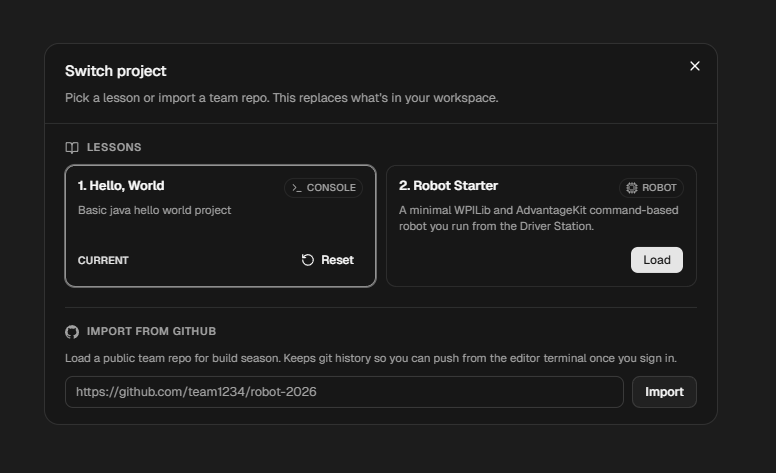
These two also illustrate the two lesson kinds (plain-java and robot)
that you will use when authoring your own modules. See
Authoring Lesson Modules for the difference and how to
build each one.